
Contact Lists
Group Contacts so you can message a smaller group.
If you don’t always want to message everyone, put contacts on Contact Lists. Think of a list as a group—board members, Building A, the choir, and so on.
Creating a list
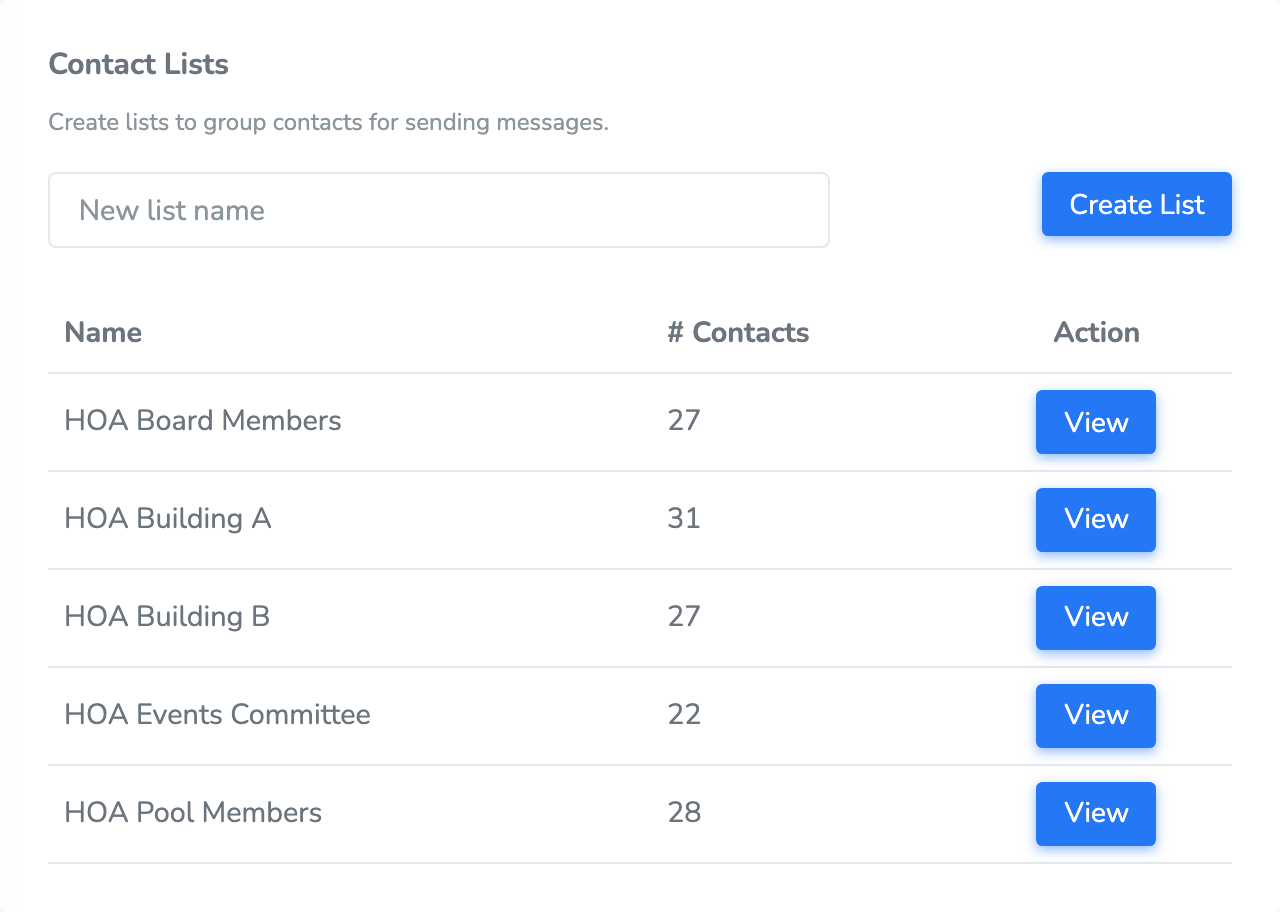
Type a New list name, click Create List, then click View to open it.
When you send, pick Select contact lists on Send A Message and check the lists you want.
Adding and removing contacts
Open the list with View, then click Add Contacts.
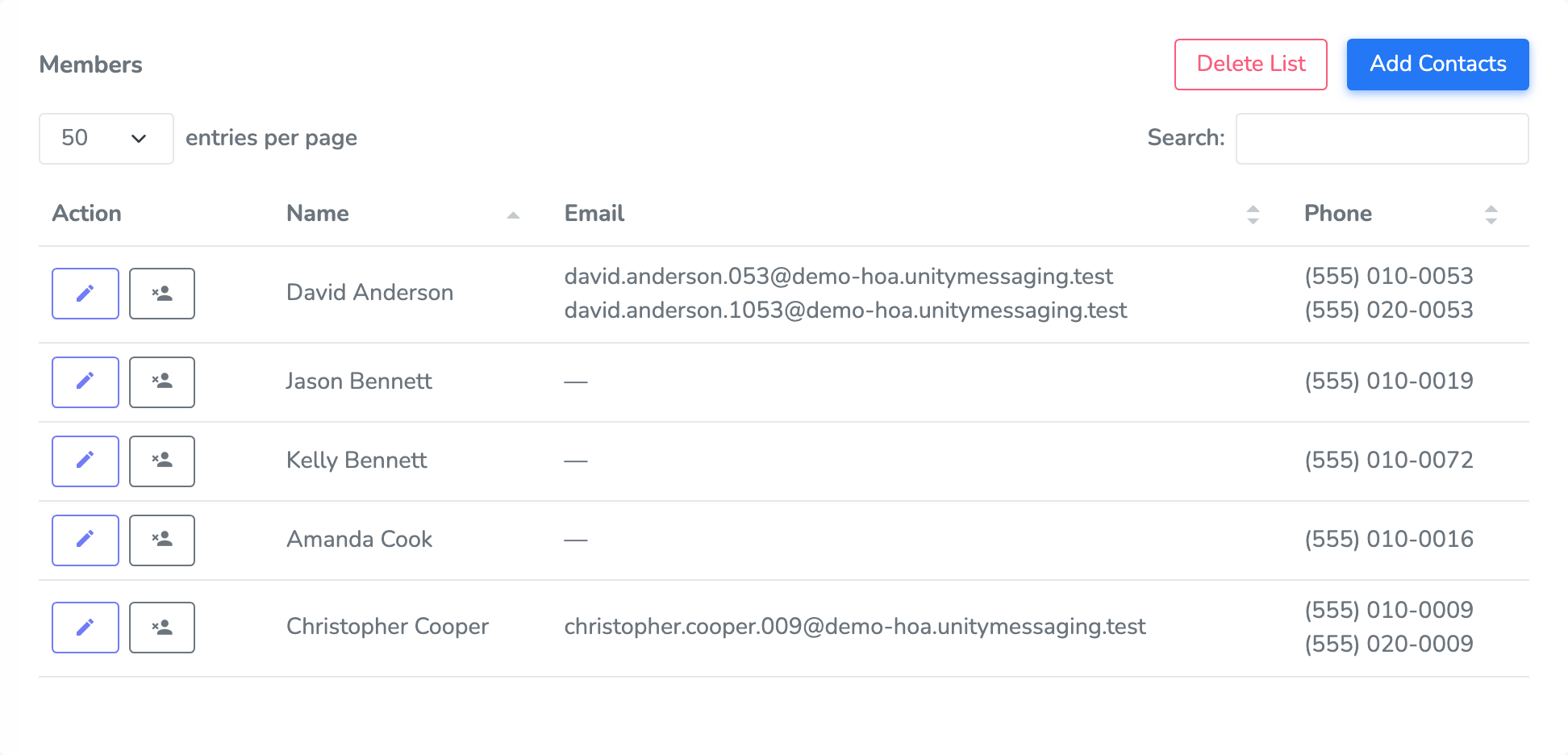
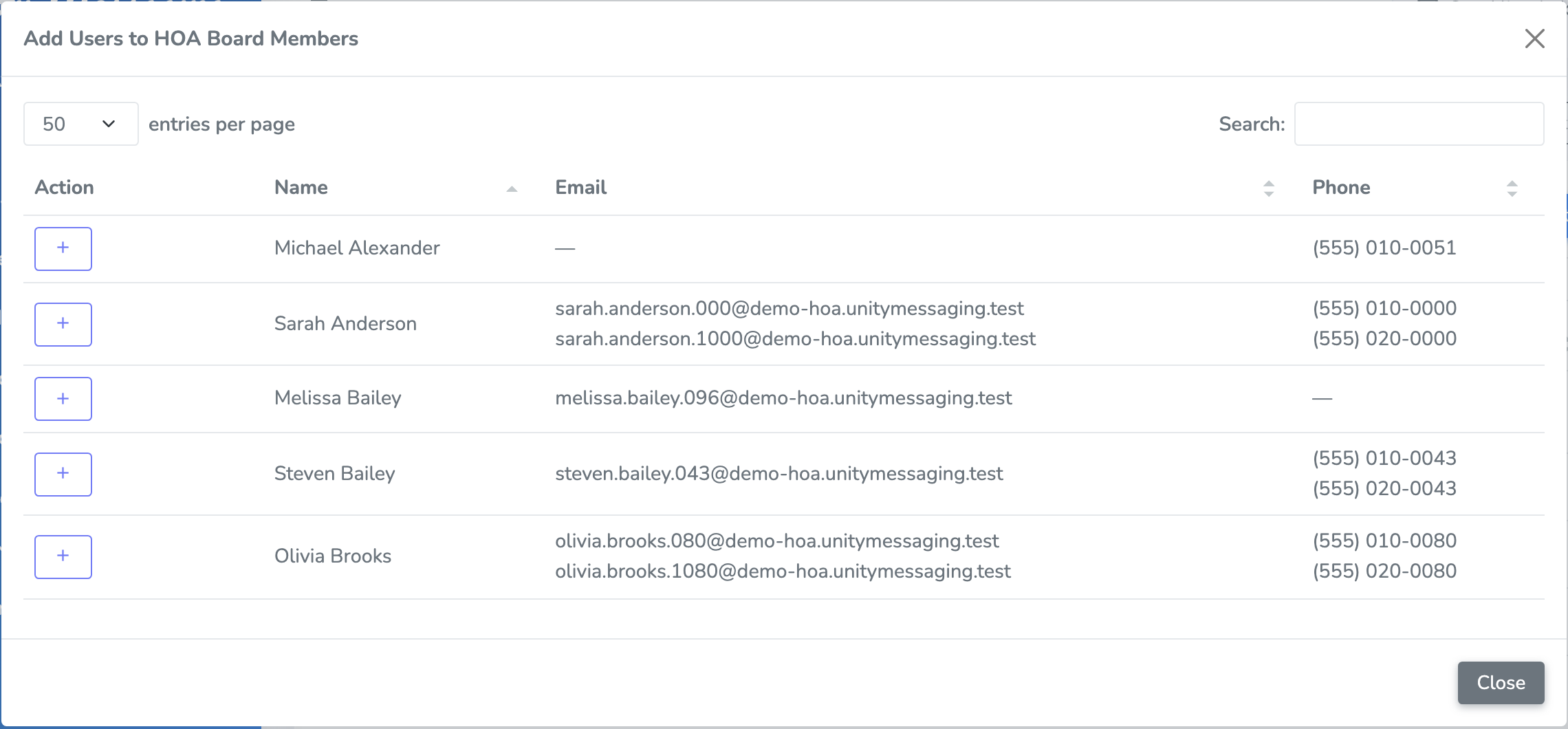
Find the contacts you want on that list and add them. The Members table is everyone currently on the list. You can take someone off the list from there. That does not delete them from Contact Management—they’re just no longer in this group.
You can also add or remove lists while you’re editing a contact, with Available Lists and Assigned Lists.
Deleting a list
If you don’t need a list anymore, open it and click Delete List, then confirm.
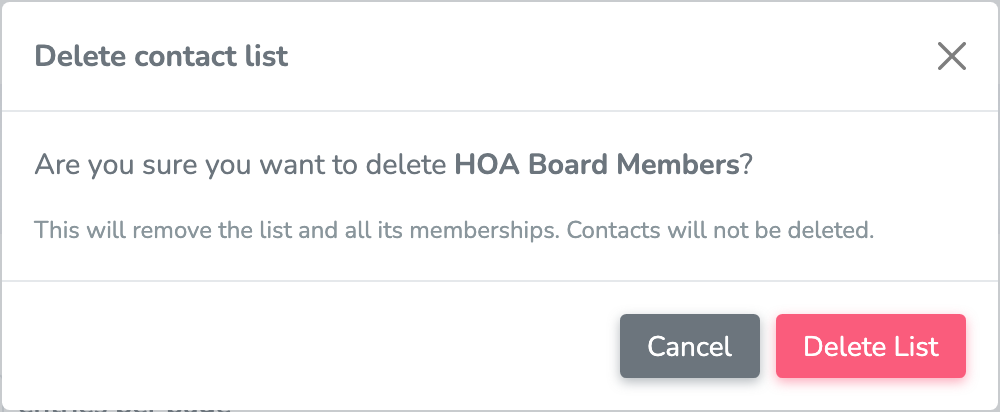
The list goes away, including who was on it. Your contacts stay in Contact Management.
Importing and exporting
On Contact Lists, Export Contact Lists downloads who is on which list. Import Contact Lists is where you upload a file.
The file needs three columns: First Name, Last Name, and Contact List. One row puts one contact on one list. If the same person belongs on two lists, give them a row for each list. Uploading the same row twice is safe — a person is only added to a list once.
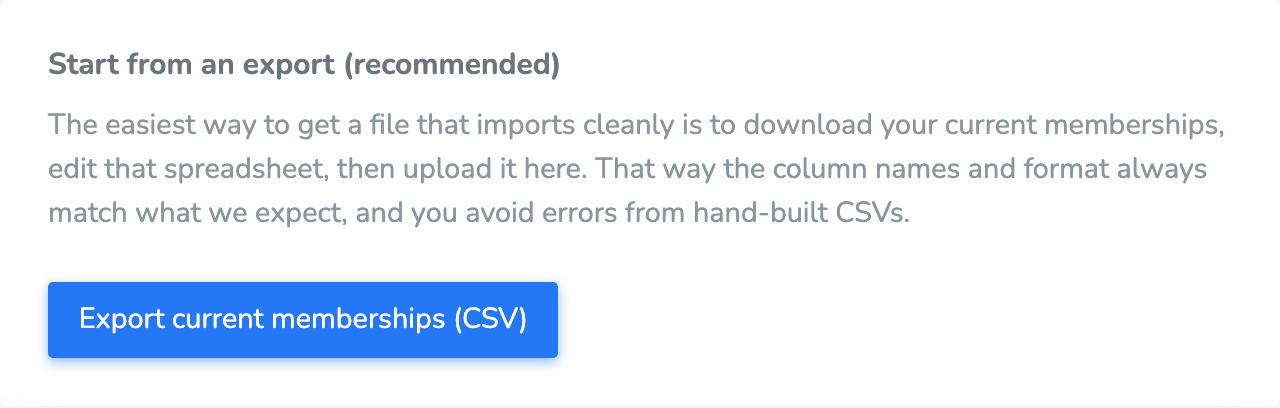
Export current memberships (CSV) on the import page downloads a file you can edit and upload again. The column names already match.
Choosing how the file is applied
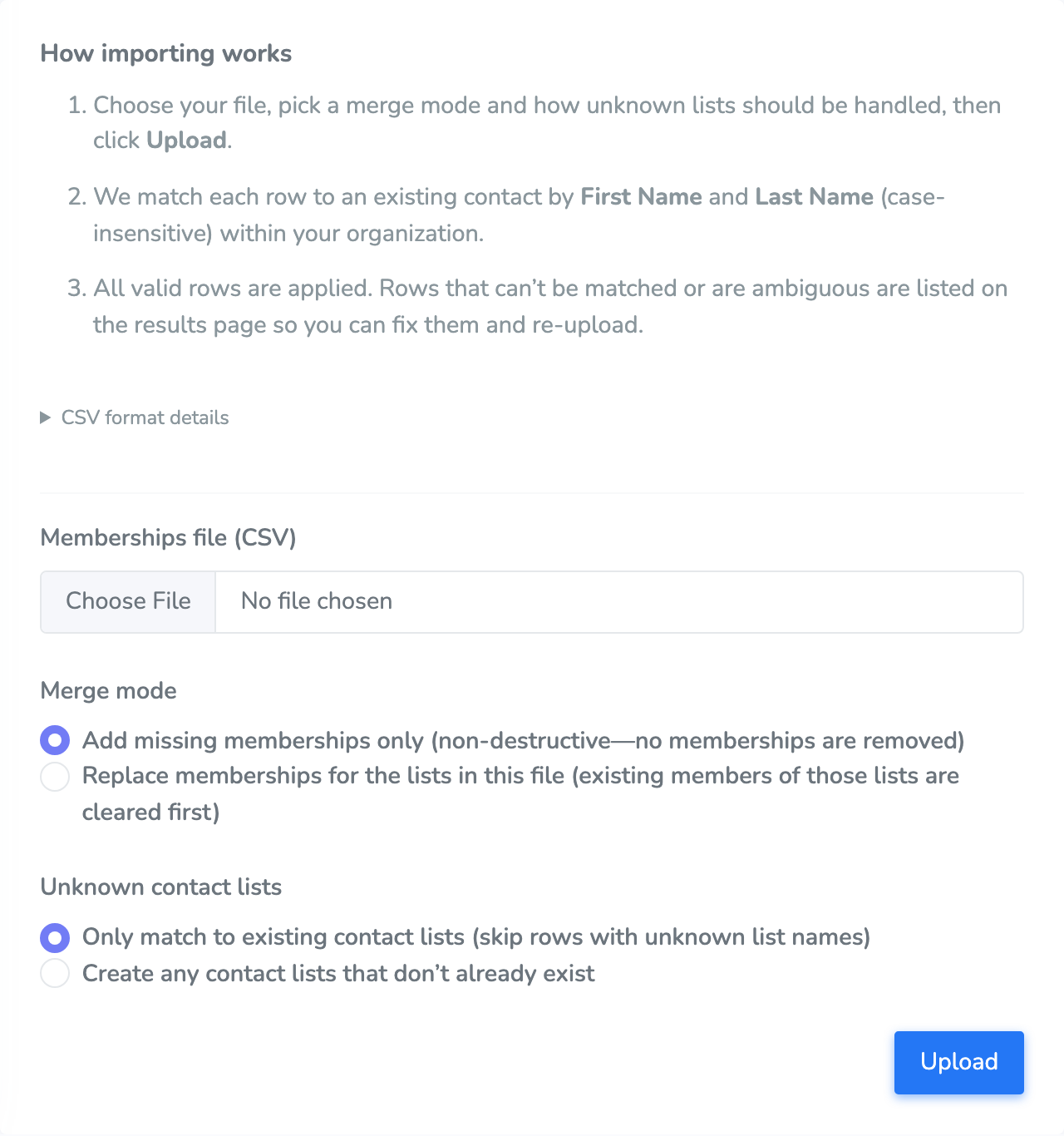
Pick a Memberships file (CSV), then set two choices before you click Upload.
Merge mode
- Add missing memberships only (non-destructive—no memberships are removed) puts people on the lists in the file and leaves everyone else where they are.
- Replace memberships for the lists in this file (existing members of those lists are cleared first) empties each list named in the file, then adds only the people in the file. Lists that aren’t in the file are left alone. Contacts themselves are not deleted.
Unknown contact lists
- Only match to existing contact lists (skip rows with unknown list names) uses lists you already have. A row for a list that doesn’t exist is skipped.
- Create any contact lists that don’t already exist makes the list, then adds the contact to it.
This is different from importing contacts. Clicking Upload applies the valid rows right away. There isn’t a separate review step before they’re saved.
Names are matched to contacts you already have, by first and last name. The import does not create contacts. Someone who isn’t in Contact Management yet has to be added there first.
Reading Import Results
Import Results opens as soon as the upload finishes.
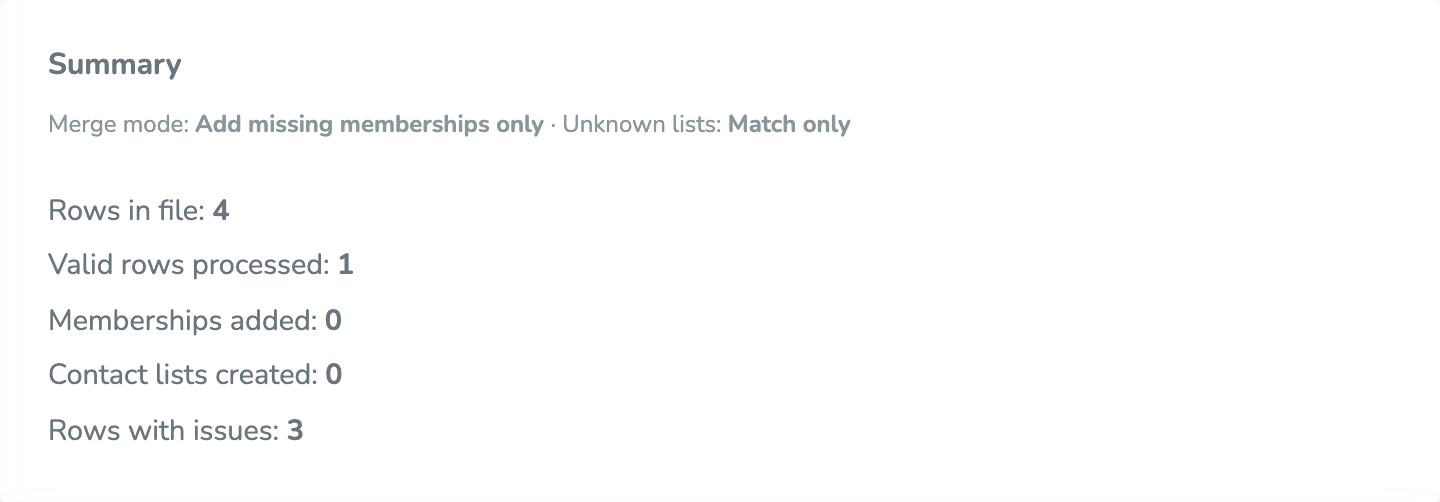
The summary shows the choices you made, then:
- Rows in file is every data row.
- Valid rows processed is rows that matched a contact and a list.
- Memberships added is people newly placed on a list. A row for someone already on that list counts as valid, but it isn’t added again.
- Contact lists created is lists made because you allowed new list names. It stays at 0 when you only match existing lists.
- Rows with issues is rows that were not applied.
If you used Replace, the summary also shows Memberships removed — the people cleared off those lists before the file was applied.
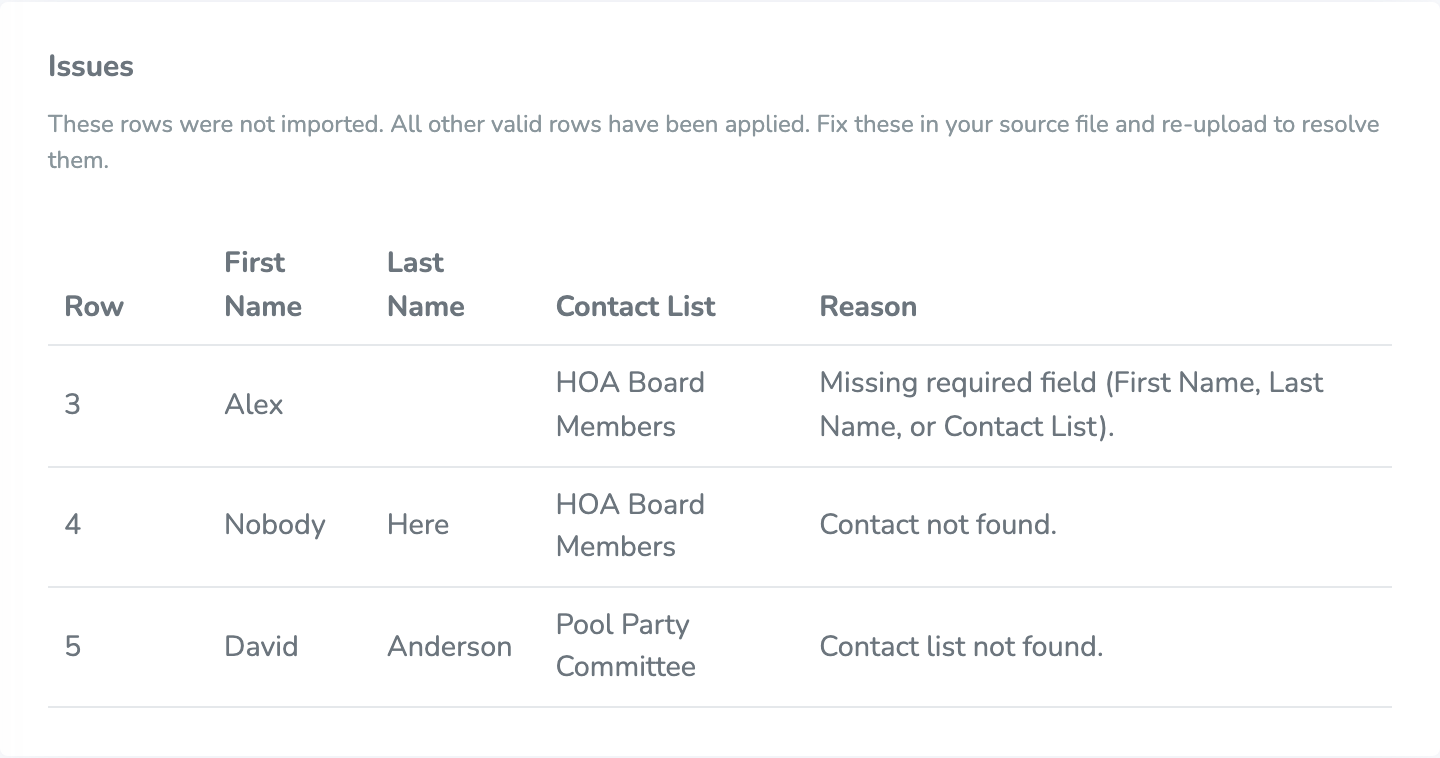
Issues lists the rows that were skipped. The other rows have already been applied. Fix the file and upload it again. You’ll usually see one of these reasons:
- Missing required field (First Name, Last Name, or Contact List). A name or the list name was blank.
- Contact not found. No contact has that first and last name.
- Contact list not found. The list name isn’t one you already have, and you chose to only match existing lists.
- Ambiguous contact (multiple matches). More than one contact has that same first and last name, so the row can’t tell which person you mean.
New Import starts another file. Back to Contact Lists returns to your lists.