
Send A Message
Write one message and send it by email, text, phone, or all three.
When you have something to tell your contacts, open Send A Message in the left menu. Work down the form, turn on the ways you want to send, and click Send Message at the bottom.
Message details
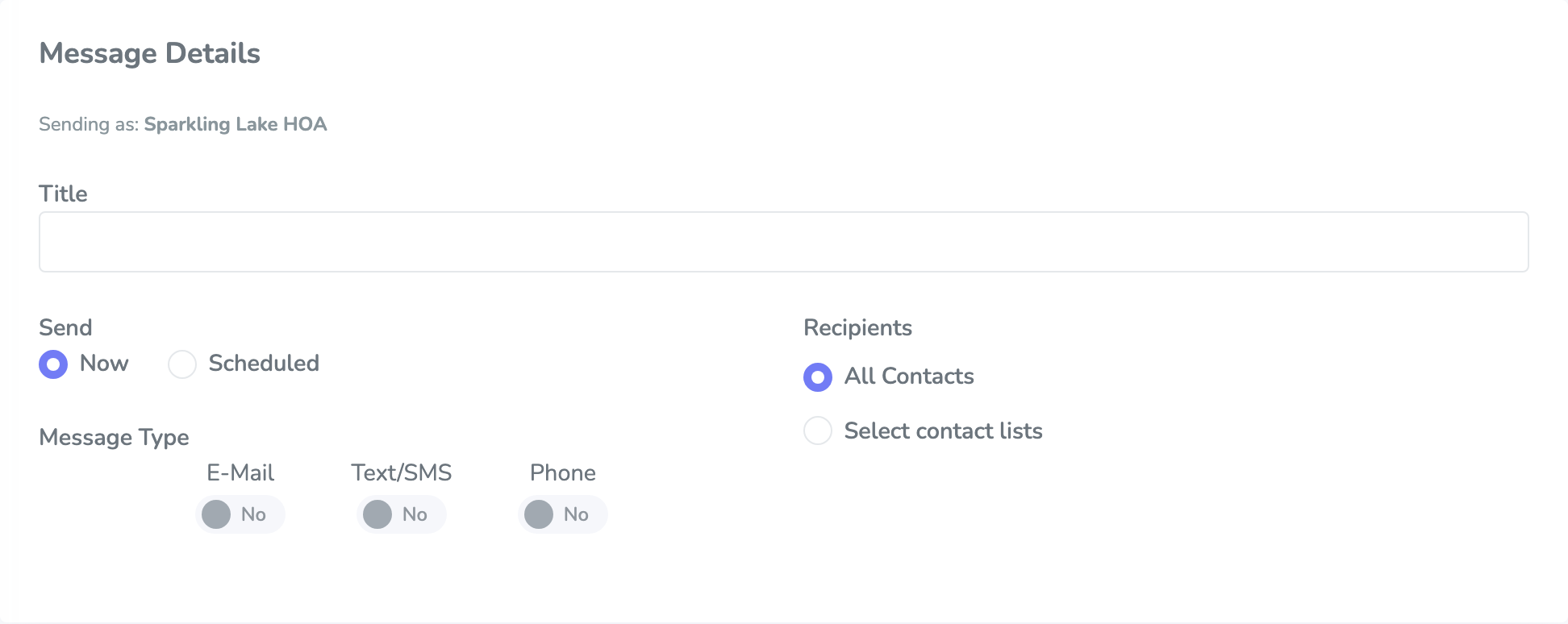
Check Sending as so you’re in the right organization. Give the message a Title (at least 5 characters). That’s just for your team—it isn’t the email subject.
When to send
Under Send, pick Now if you want it to go out as soon as you click Send Message. Pick Scheduled if you want it to wait, then choose a Date and time.
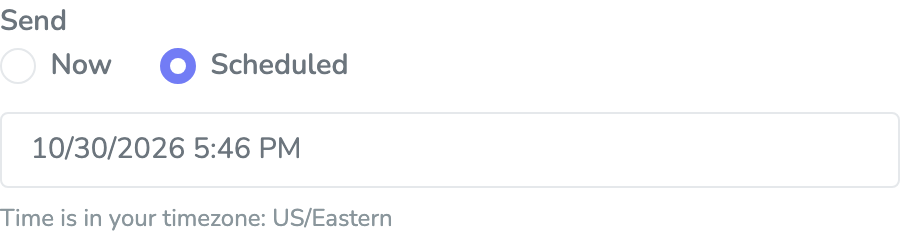
You can’t pick a day in the past. Times follow the time zone on your Profile. If that’s set to Use browser default, we use whatever time zone your browser is using.
If you scheduled too soon and the message is still Pending, you can delete it from Message Status. Once it leaves Pending, it can’t be deleted.
Who receives it
Under Recipients, All Contacts sends to every active contact in the organization. Select contact lists sends only to the lists you check.
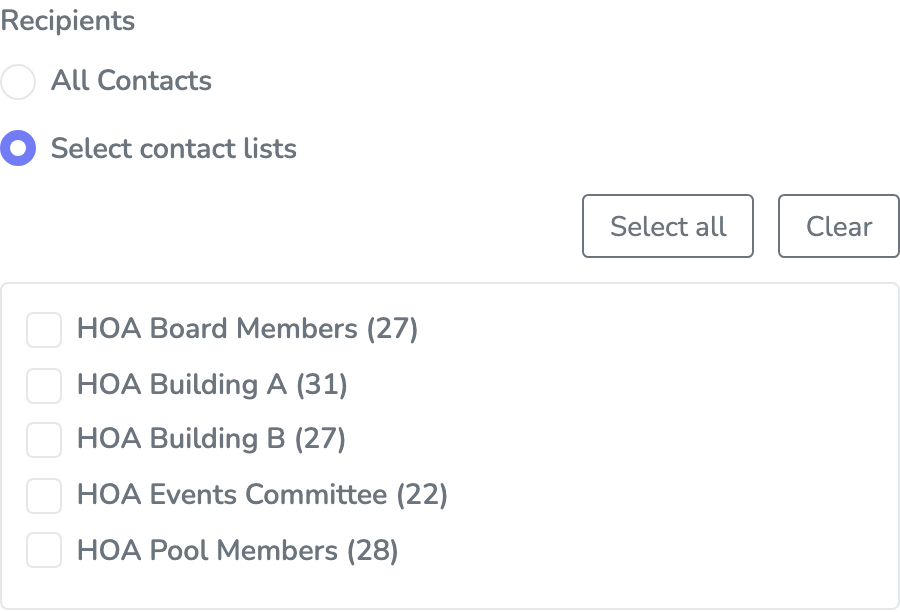
If you use lists, you can Select all or Clear. Each list shows how many contacts are on it. Empty lists stay grayed out.
Pending registrations don’t get the message. An Administrator has to accept them under Pending registrations on Contacts first.
Turn E-Mail to Yes.
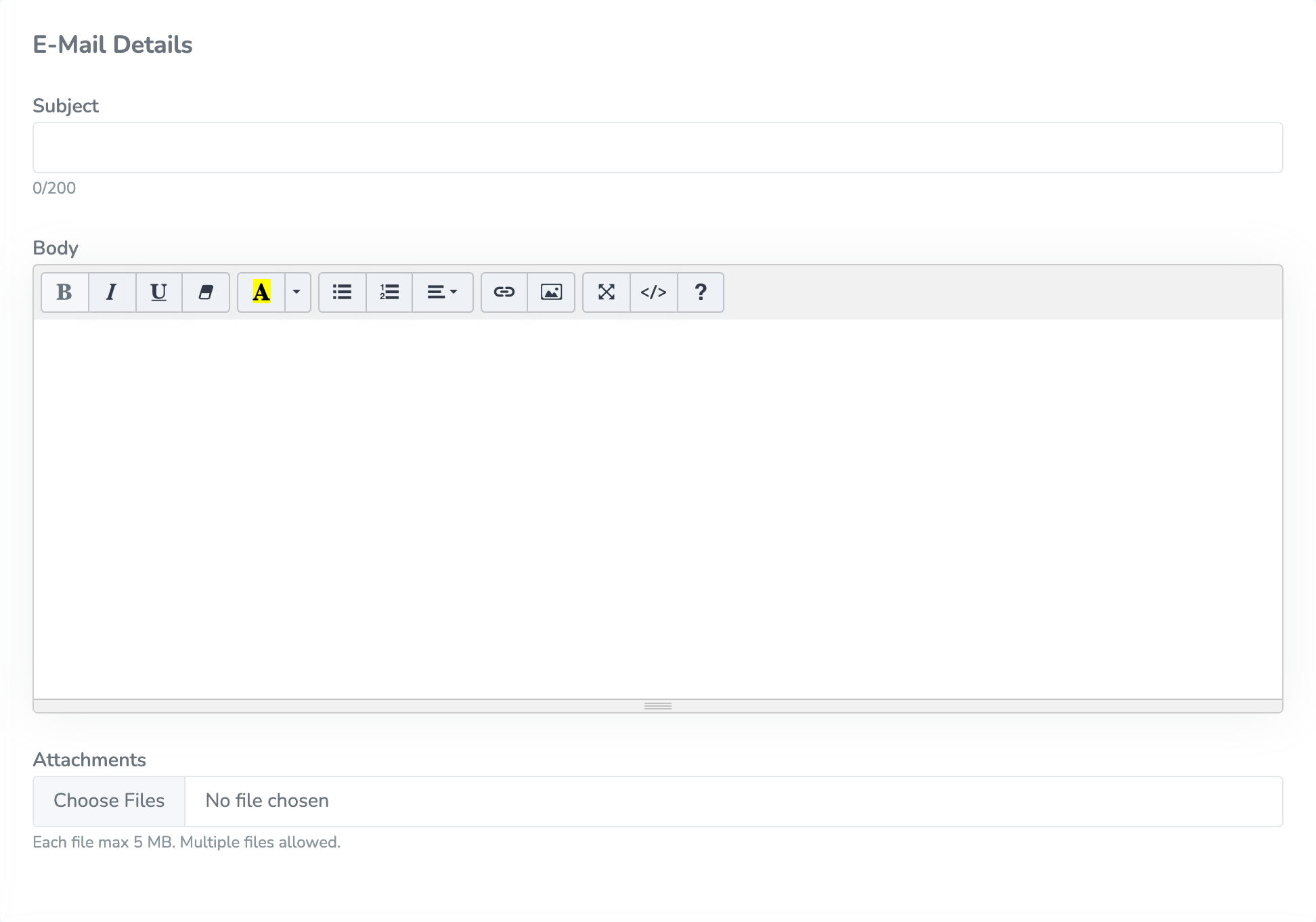
Type a Subject (at least 5 characters). What people actually receive looks like {Organization name}: {subject}, and the whole thing has to stay under 200 characters. Then write the message itself.
You can add Attachments. Each file can be up to 5 MB. You can attach up to 5 files, and they can’t add up to more than 10 MB altogether.
Replies go to the Contact email in Administration—not to whoever clicked Send. If that address is blank, the form will warn you that people won’t be able to reply.
The email is sent from your Mail From address, which always ends in @unity-messaging.com. You can’t send E-Mail until an Administrator sets Mail From.
Text/SMS
Turn Text/SMS to Yes, then type the Message. Keep it to 320 characters.
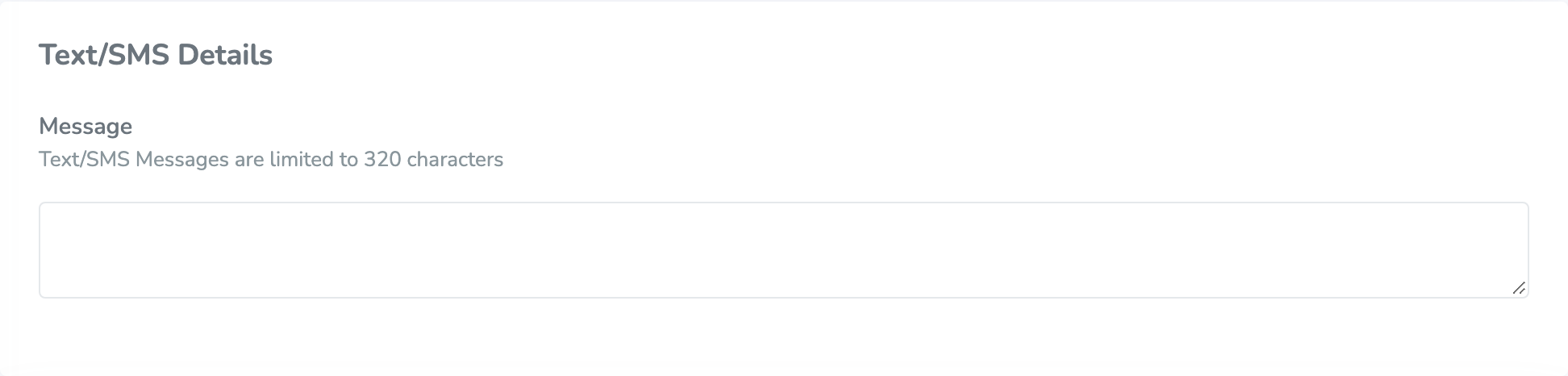
You can’t send pictures, and Unity Messaging doesn’t show an inbox for text replies. If someone texts back, you won’t see it here.
Some contacts may not get a text—for example, if the number isn’t a mobile phone. See why a contact may not get a message.
Phone
Turn Phone to Yes. Your organization needs a Verified Caller ID first—that’s the number people see on their phone.
You can either record your own voice or type words that are read aloud. You can’t mix the two on the same message.
Recording a message
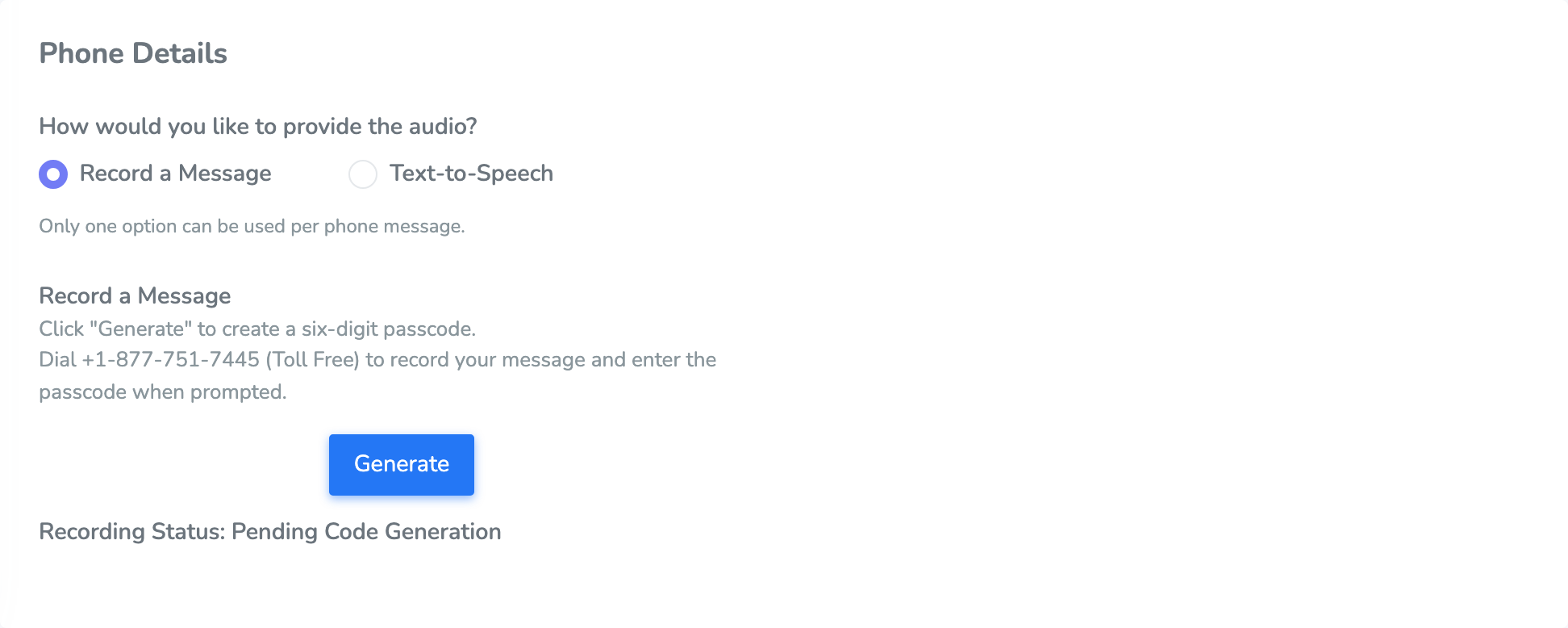
Click Record a Message, then Generate. You’ll get a six-digit passcode (it lasts 10 minutes). Dial +1-877-751-7445 (toll free), enter the passcode, and record.
Text-to-Speech
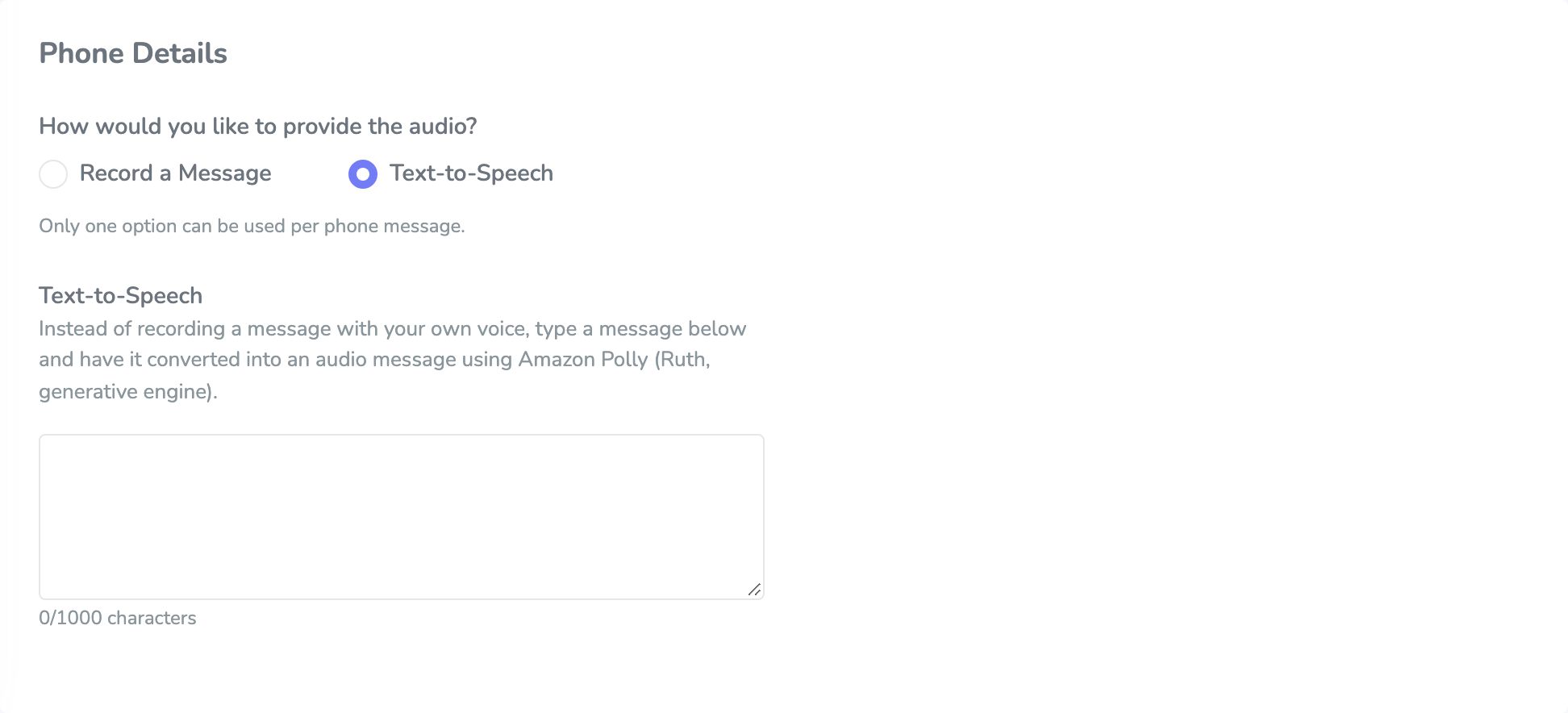
Click Text-to-Speech and type up to 1,000 characters. Click Preview Generated Audio if you’d like to hear it before you send.
Sending it
When the parts you turned on are filled in, click Send Message. You’ll get a confirmation that it’s on its way. Open Message Status if you want to follow it.
Need to start over? Click Reset.
If you can’t send yet
A couple of settings have to be in place first. An Administrator does this in Administration.
For E-Mail, set Mail From. It’s also a good idea to set Contact email, so replies come back to your organization.
Text/SMS is ready as long as your organization can send.
For Phone, add a Caller ID and wait until it shows Verified.
If something’s missing, you’ll see Complete Organization Setup. Messengers can’t finish that—an Administrator needs to.
If the subscription is past due, canceled, unpaid, or ended, sending can be blocked. An Administrator can update payment in Administration.