
Contact registration
How someone on your list signs up, updates their details, or changes email.
This isn’t a page for staff. It’s for the people you message, using a link or key you share from Self-Service Contact Management.
Signing up or looking themselves up
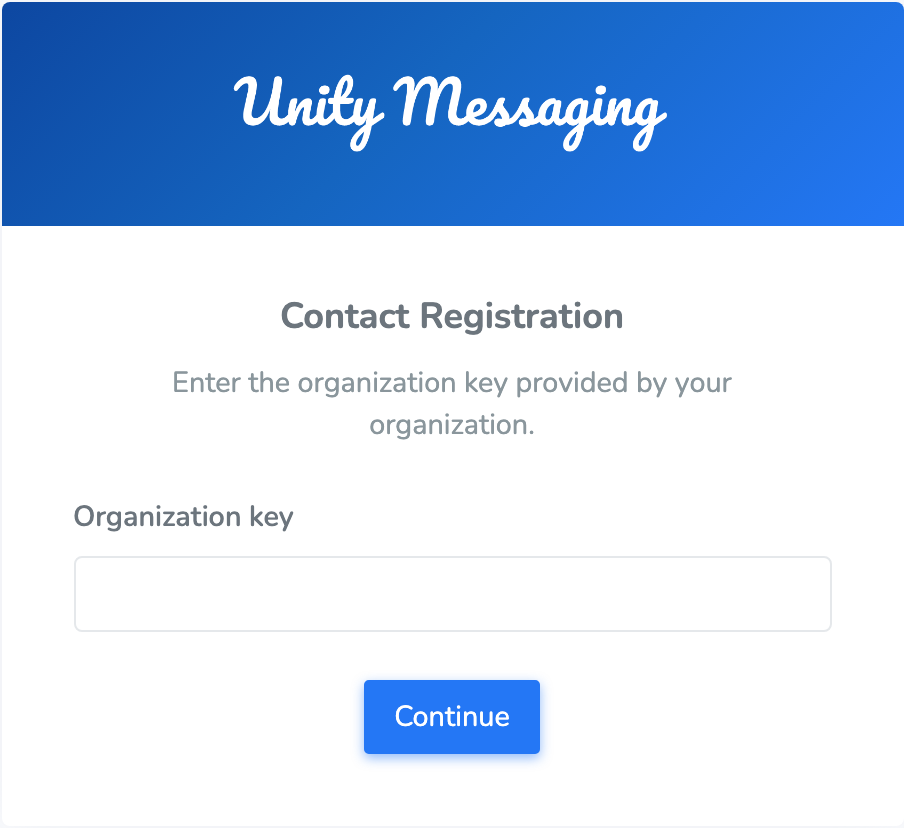
They open the link (or go to the registration page), type the Organization key, and click Continue. Then they enter an Email or phone number, or click New here? Register your contact details if they’re new.
If new sign-ups are allowed, an administrator reviews the details before messages start.
They need at least one email so they can come back later. They can also add phone numbers and choose Voice Calls and Text Messages.
Confirming it’s them
After someone looks themselves up or registers, we send a code to their email or phone.
They enter the Verification code and click Verify and continue. The code lasts 10 minutes. Resend code sends a new one. Use a different email or phone starts over.
Managing contact details
On Manage contact details they can update their information and click Save changes, Sign out when they’re done, or Delete Contact Record to remove themselves completely.
The session lasts 30 minutes. After that, they start again from the organization key page.
Email preferences
Every email from Unity Messaging includes a link to manage email preferences. That’s separate from the registration link.
Click that link, review the organizations listed for that address, update the checkboxes, and click Update preferences.
That only changes email. It’s separate from stopping Text/SMS. Use the link in the email each time you want to change these settings.