
Getting started
Create an account, sign in, and get into your organization.
Start at unity-messaging.com. It’s free to begin, and you don’t need a credit card.
Signing Up
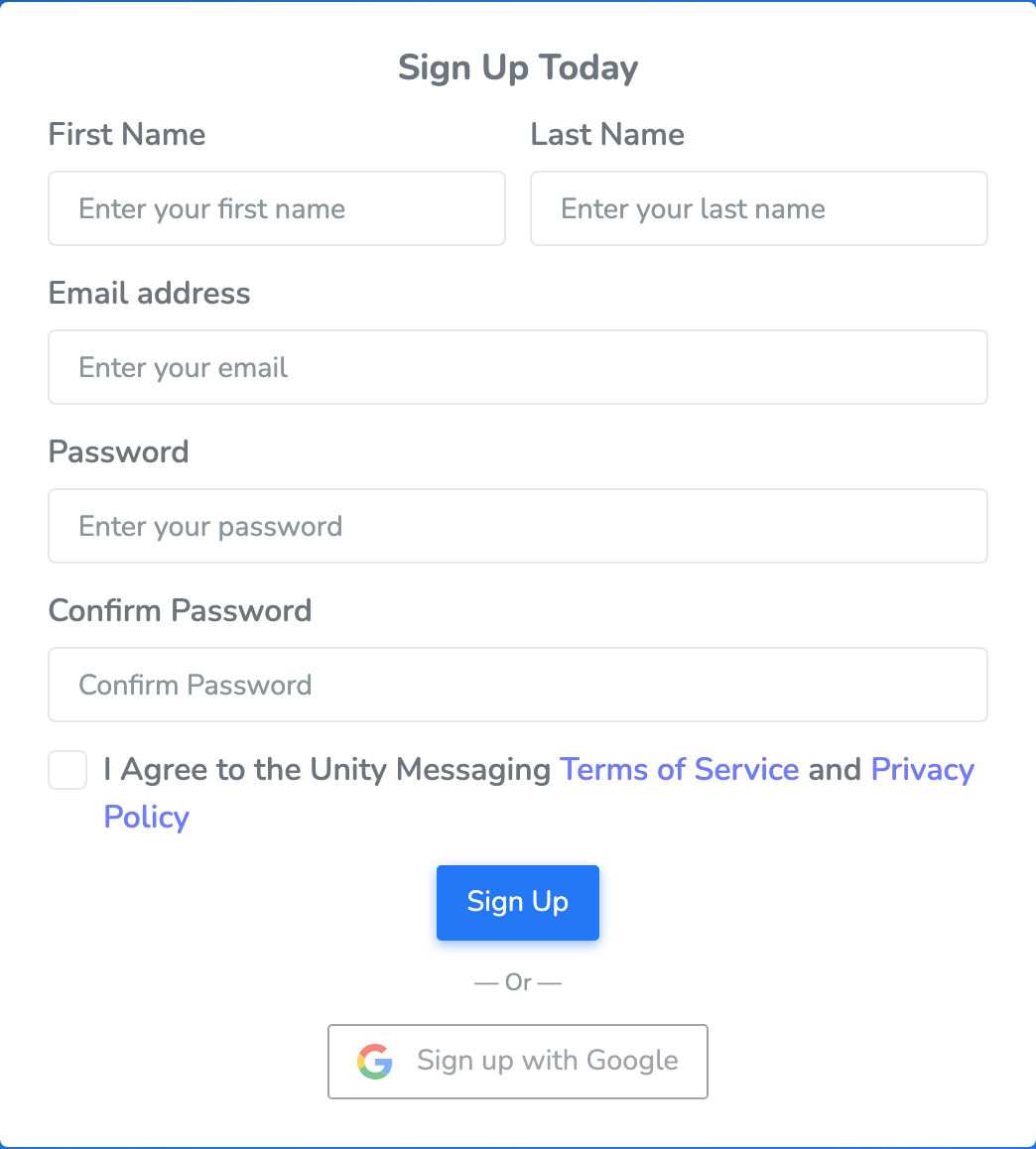
If you don’t have an account yet, open Sign Up. Fill in First Name, Last Name, Email address, Password, and Confirm Password. Check the box that you agree to the Terms of Service and Privacy Policy, then click Sign Up.
Prefer Google? After you agree to the Terms, click Sign up with Google instead.
Pick a password you’ll remember that still meets these rules:
- At least 8 characters
- One uppercase letter (A–Z)
- One lowercase letter (a–z)
- One number (0–9)
- One special character
Confirming your email
After Signing Up with an email and password, look for a message from Unity Messaging. It has a link to confirm that the address is yours.
Open the email and click the link. Then go back to Sign In. If you used Sign up with Google, you can skip this step.
The link works for 24 hours. If it has expired, go to Sign In, try to sign in, and click Resend verification email. On the next page, click Send Verification Link.
Signing In
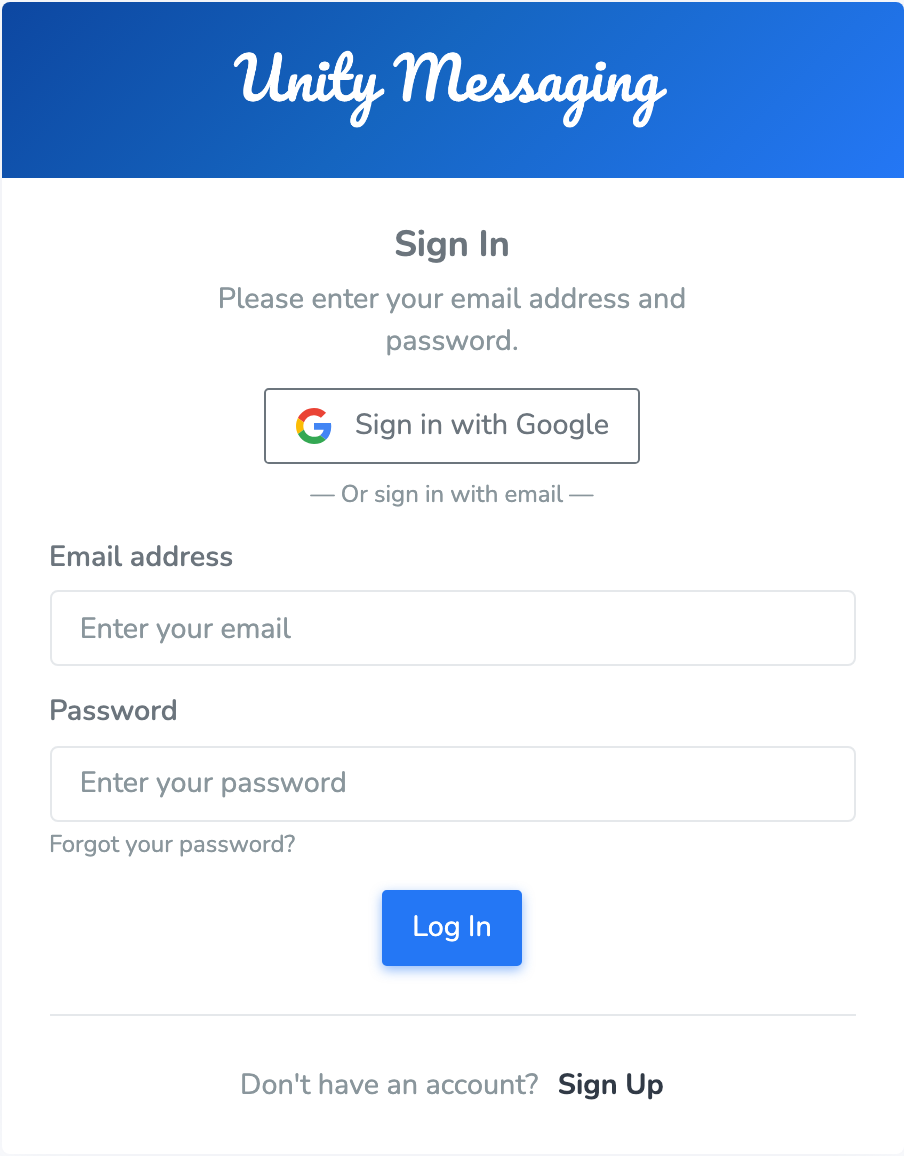
When you’re ready to use Unity Messaging, open Sign In. Type your Email address and Password, then click Log In. If you created the account with Google, click Sign in with Google instead.
If signing in doesn’t work:
- If you signed up with email and password, confirm your email first.
- Forgot the password? Click Forgot your password?
- Google-only accounts don’t have a Unity Messaging password. Use Sign in with Google.
- Too many failed tries can lock the account for 15 minutes. Wait, then try again.
Resetting your password
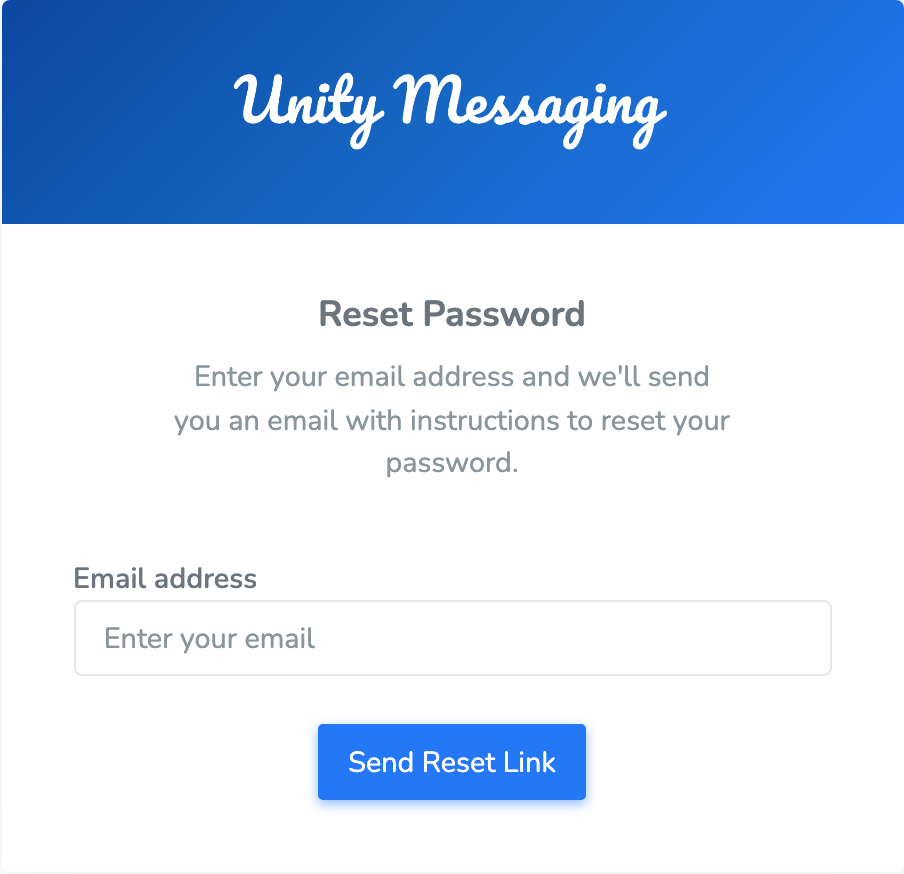
On Sign In, click Forgot your password?, enter the email you use for Unity Messaging, and click Send Reset Link. Open the email, follow the link, then enter a New Password and Confirm New Password. Click Reset Password.
The link works for one hour. Use the same password rules as when you signed up.
If you only sign in with Google, there isn’t a password to reset. Use Sign in with Google instead.
Setting up your organization
The first time you sign in without an organization, you’ll land on Welcome. This is where you create the organization you’ll send messages from.
Type an Organization Name. For Number of Contacts, enter how many contacts you plan to keep (this is the number your plan allows). Then click Complete Setup.
You’ll be an Administrator for that organization, and you can go to the Dashboard from there.
Need another organization later? Open the organization name at the top of the screen and click Create New Organization.
Accepting an invitation
If someone on a team wants you to help send messages, an Administrator can invite you from Administration. You’ll get an email.
Open that email and click the link. Sign Up or Sign In with the same email address the invitation was sent to, then accept the invite so you can join the organization.
Invitations last 7 days. If yours expired, ask an Administrator to click Re-send invite.
Organizations
You might belong to more than one organization—for example, a church and a school. You can only work in one at a time, but switching is quick.
Click the organization name at the top of the screen. Under Switch organization, pick the one you want.
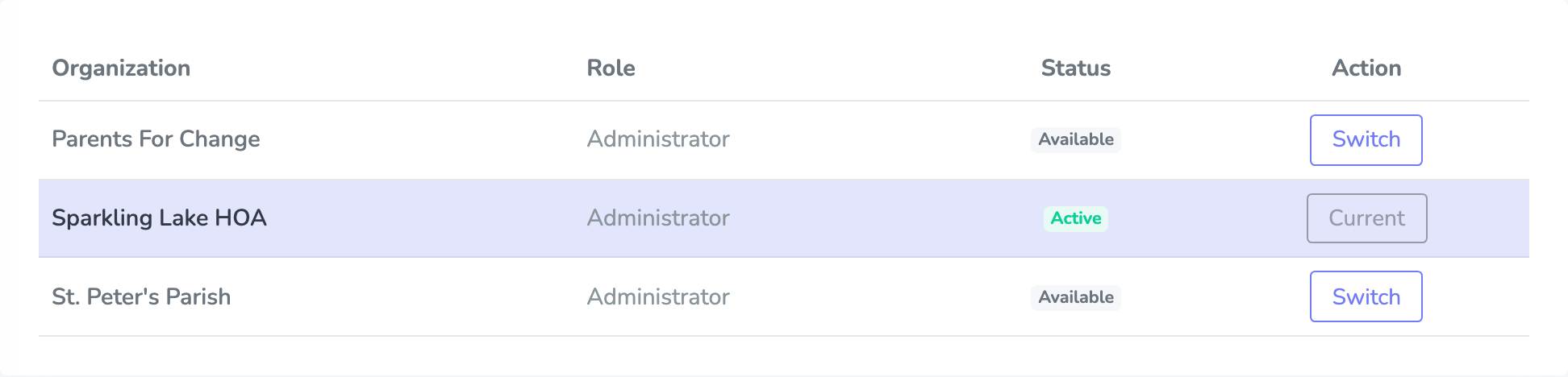
If you belong to more than two, the left menu also has Organizations. That page lists each organization, your Role (Administrator or Messenger), and which one is Current. Click Switch to move, or Create New Organization to start a new one.