
Contacts
Add, update, and remove the people you message.
Contact Management is where you keep the list of people you message. The page is called Contacts.

Near the top you’ll see how many contacts you have compared with your limit. You can Import a spreadsheet, Export CSV, or click New Contact. If self-service is on, Pending registrations shows people waiting for you to accept them.
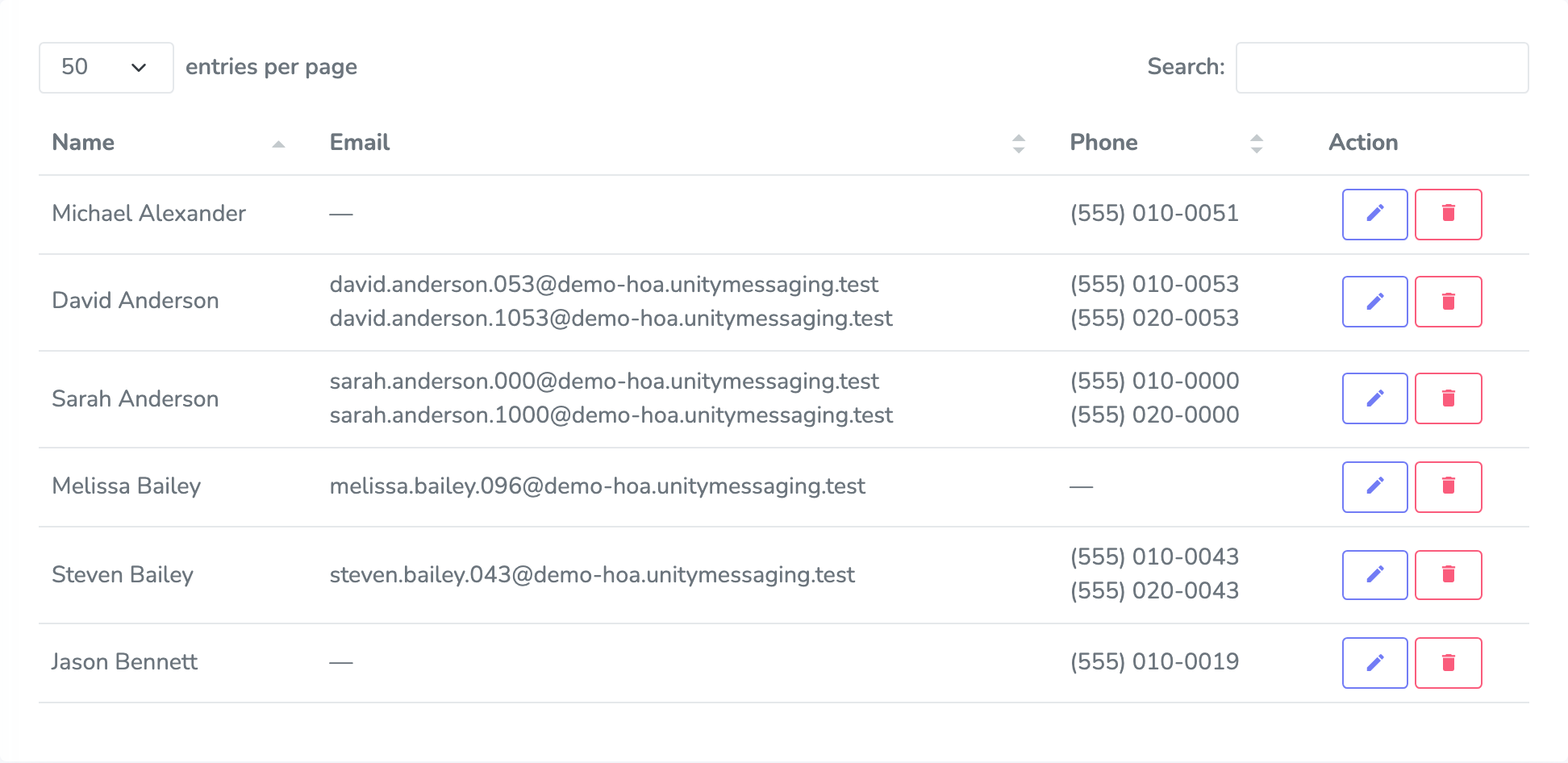
Each row is one contact. Click the pencil to edit, or the trash can to delete. A contact can have up to two email addresses and two phone numbers.
Adding a contact
Click New Contact. Enter First Name and Last Name, plus at least one email or phone number. If they should get email, leave Subscribed checked. Click Save Contact.
Need a second email or phone? Click +.
At least one email or phone is required. Phone numbers are 10-digit US numbers.
Editing a contact
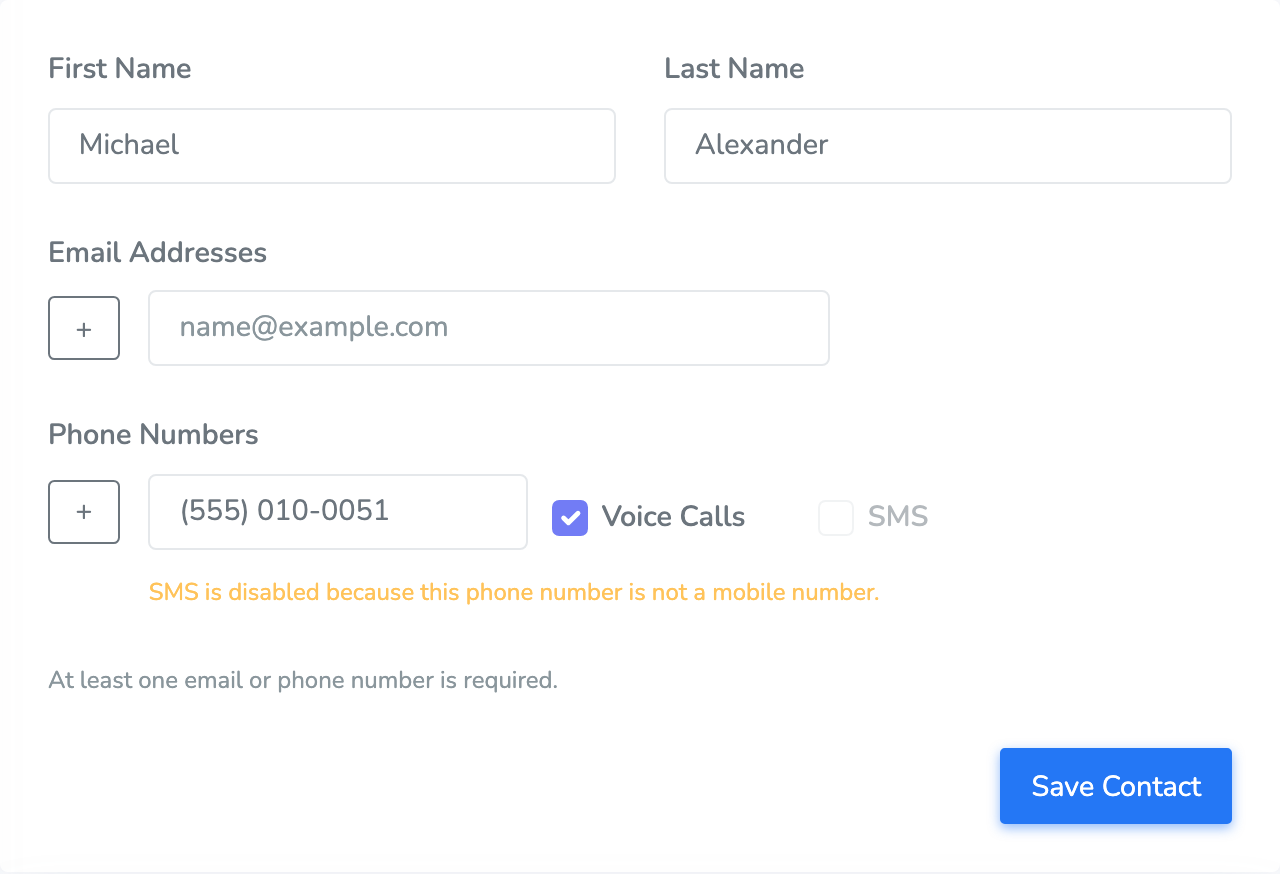
Click the pencil next to someone on the list. Change whatever you need, then click Save Contact.
After a phone number is saved, you can turn Voice Calls and SMS on or off for that number. If you turn Subscribed back on after someone unsubscribed from email, you may see a warning.
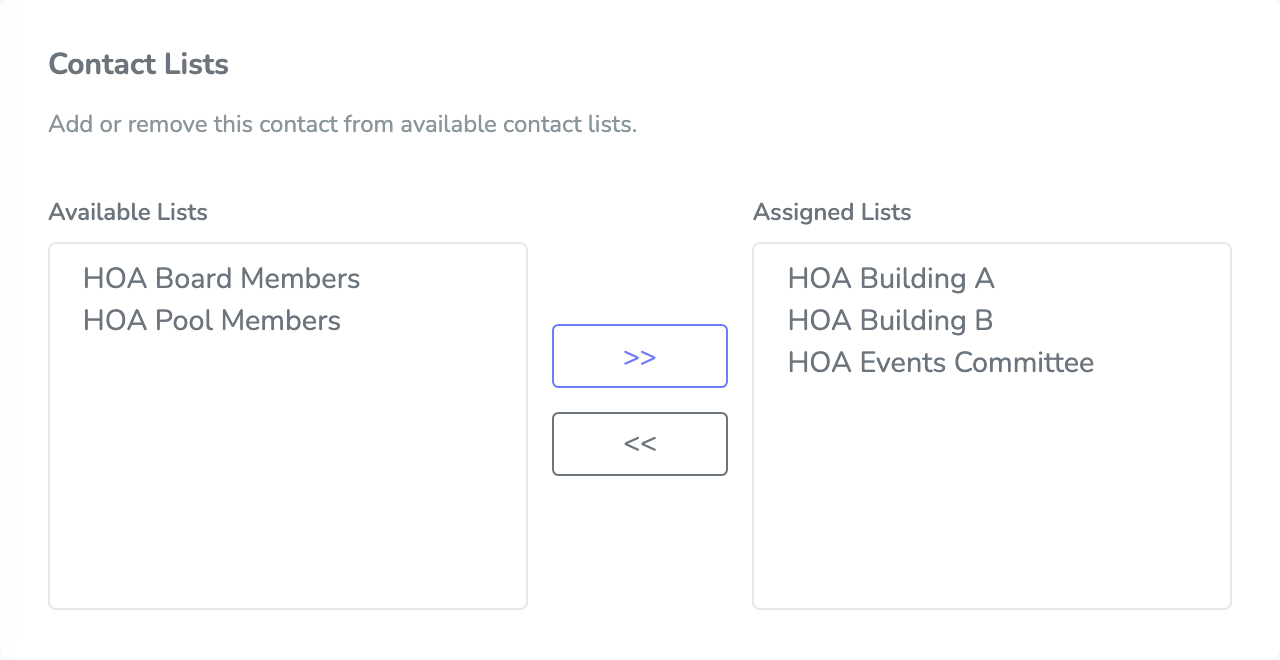
You can also move lists between Available Lists and Assigned Lists with >> and <<.
Why a contact may not get a message
If a text or call isn’t going through, open Edit Contact. Yellow notes under the phone number usually explain why.
You might see:
- SMS is disabled because this phone number is not a mobile number.
- SMS is disabled because this contact unsubscribed from notifications.
- SMS is undeliverable for this number. Delivery from previous messages failed.
- Voice calls are undeliverable for this number. Delivery from previous messages failed.
If someone unsubscribed from texts, you can’t turn SMS back on for them. If they unsubscribed from email, Subscribed may be off. Turning it back on can show a warning that they previously unsubscribed.
Deleting a contact
Click the trash can on that row. You can also open Edit Contact and click Delete Contact. Confirm Delete.
This can’t be undone, so pause if you’re not sure.
How many contacts you can keep
The count under the page title is how many contacts you have, compared with your limit. Only active contacts count. Someone waiting in Pending registrations doesn’t take a spot until you accept them.
When you’re at the limit, New Contact opens Contact limit reached. An Administrator can raise the number in Administration, under Billing.
You can start free with up to 5 contacts and every feature. When you need more, you pay per contact, monthly or once a year. Messaging stays unlimited, and there’s no contract. The exact price is on Administration before you subscribe.
Pending registrations
When self-service sign-up is on, click Pending registrations on Contacts.
Accept turns them into an active contact (and they start counting toward your limit). Reject removes the registration.
If you’re already at your contact limit, Accept stays disabled until you make room or an Administrator raises the limit in Billing.
Importing and exporting
Click Export CSV on Contacts if you want a copy of your current list. That’s also the easiest file to edit and upload again, because the column names already match.
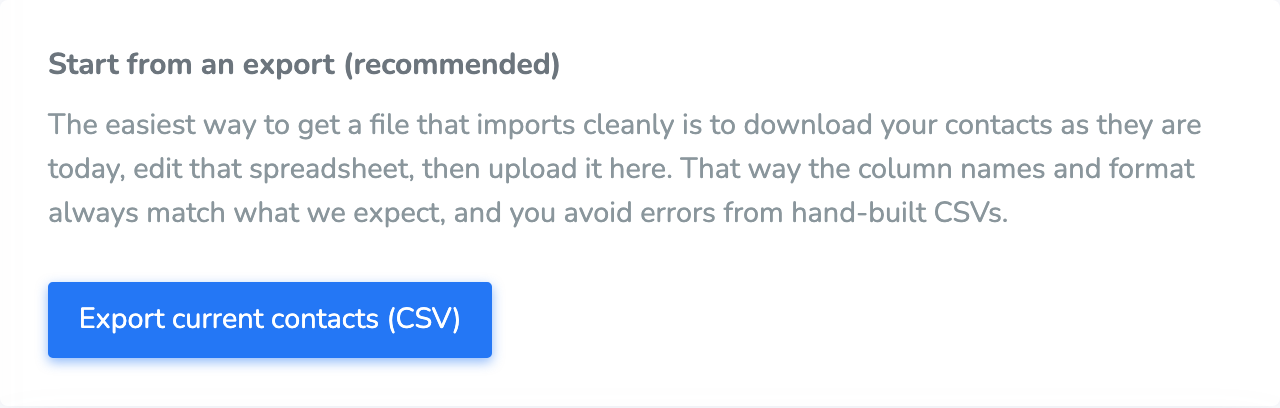
Click Import, choose your Contacts file (CSV), then choose how to import:
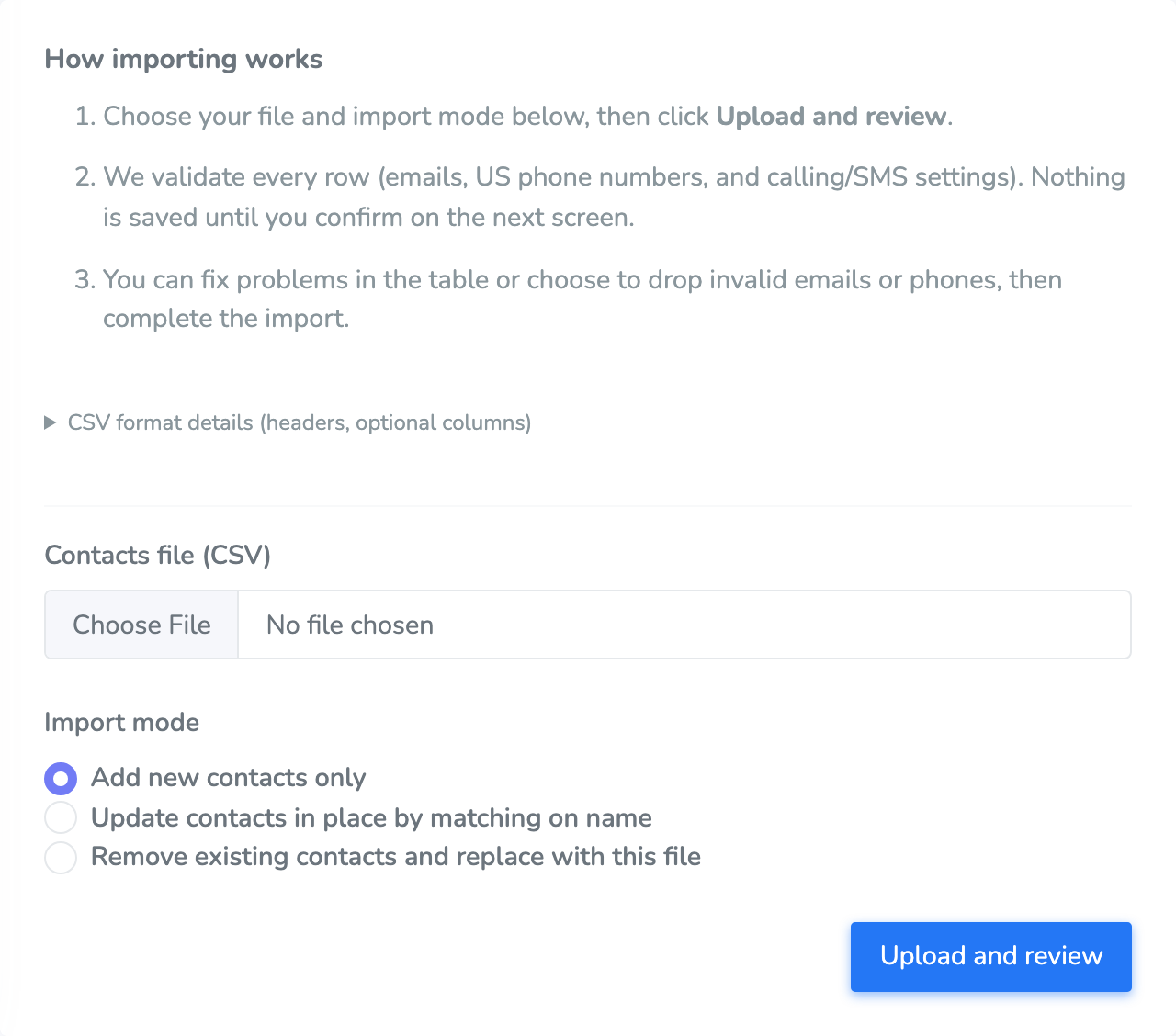
- Add new contacts only adds people who aren’t already on your list. Someone whose first and last name already match is left as they are.
- Update contacts in place by matching on name changes the existing contact when the first and last name match.
- Remove existing contacts and replace with this file clears the current list and uses the file instead. Use this only when the file is the full list you want to keep.
The file needs First Name and Last Name. You can also include Email 1, Email 2, Phone 1, Phone 2, and yes/no columns for voice and SMS on each phone. Save it as UTF-8. Phone numbers should be 10-digit US numbers.
Click Upload and review. Nothing is saved yet.
Checking phone numbers
If the file has a phone number with all 10 digits, Unity Messaging checks that number with the carrier before the review opens.
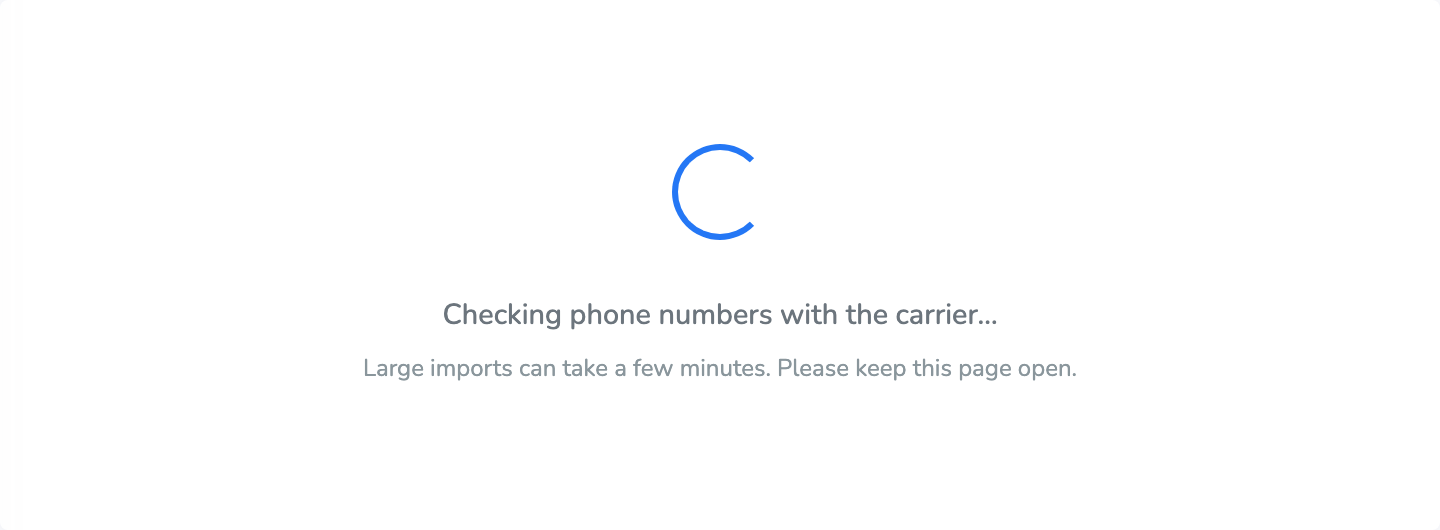
Keep this page open. A large file can take a few minutes. A number that’s too short, or that isn’t digits, is flagged right away and doesn’t wait on this check.
Reviewing what will be imported
When the check finishes, you land on Review contact import.
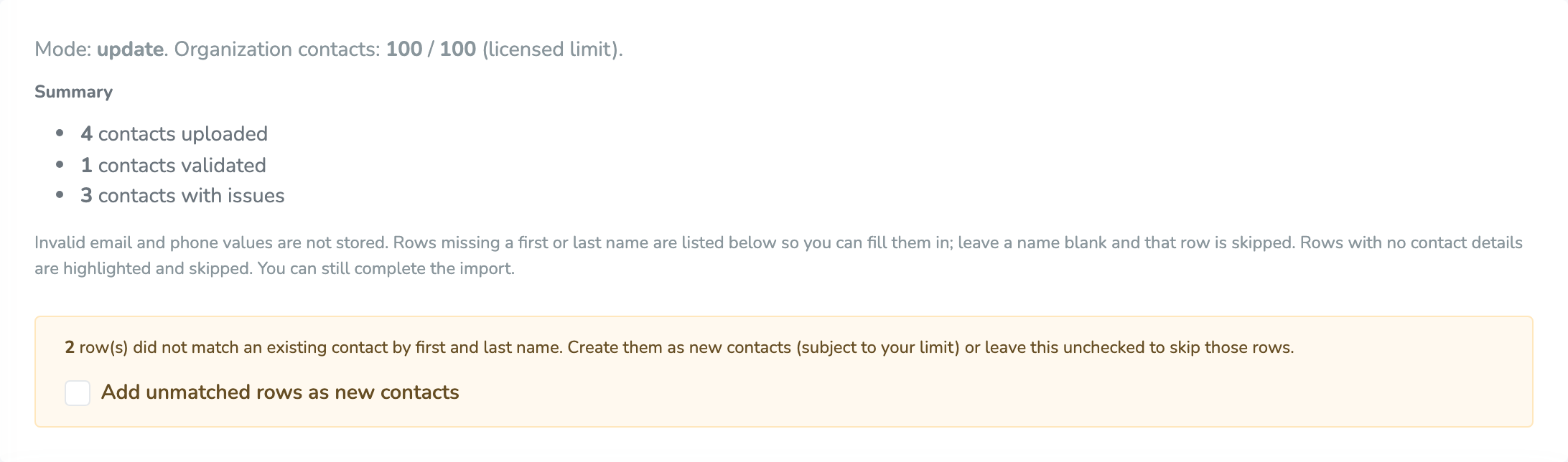
The summary tells you how many contacts were uploaded, how many validated, and how many have issues. A validated contact doesn’t need a change. Invalid email and phone values are not stored, and you can still finish the import.
If you chose Update contacts in place by matching on name, you may also see rows that didn’t match anyone already on the list. Check Add unmatched rows as new contacts only if you want those people added. Leave it unchecked and those rows are skipped. New contacts still have to fit under your contact limit.
Fixing rows that need a look
Only the problem rows show up in Contacts with issues. The fields you can change are open. The rest are just there so you can see them.
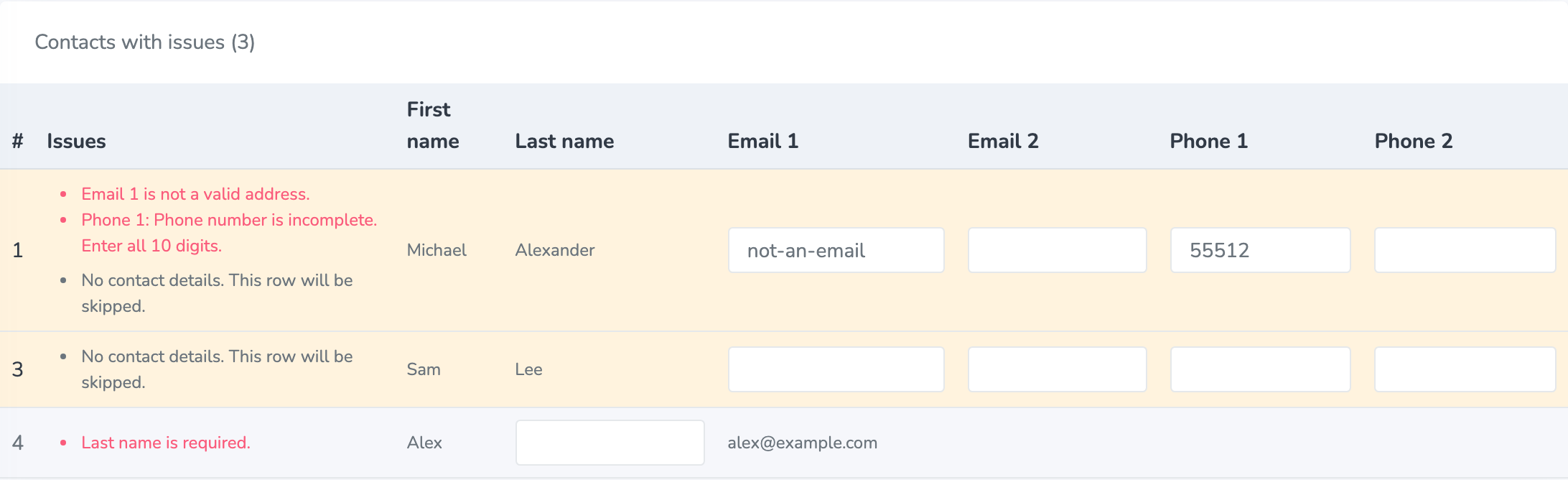
Typical notes:
- Email 1 is not a valid address. Fix the address, or clear it. A bad address is not saved.
- Phone 1: Phone number is incomplete. Enter all 10 digits. The same idea applies if a number has too many digits. A phone that fails the carrier check says Phone 1 failed validation (lookup). That number is not saved.
- Last name is required. or First name is required. Type the missing name. If you leave it blank, that row is skipped.
- No contact details. This row will be skipped. The row has no email and no phone we can save. It’s highlighted. Add one, or leave it and we’ll skip the row.
Click Complete import when you’re ready. That’s the moment the contacts are saved. Cancel throws the upload away and changes nothing.